
Squarespace: Create and sync new products
This step-by-step guide explains how to create new products within the Live Ink app and sync them directly to your Squarespace store.
Pre-Step: The Golden Rule
If you plan to use custom inside neck labels, you must set these up in your Brand Profile before creating products. This ensures the labels are available to assign during the setup process.
Step 1: Access the Product Catalog
-
Log in to your Squarespace Admin.
-
Navigate to the Apps section (jigsaw piece icon) and select Live Ink.
-
Once the app loads, click the GARMENTS button on the dashboard.
-
Browse the catalog and select your base garment (e.g., Stanley Stella Creator).
-
Tip: If you're new, start with the CORE category for popular retail-quality options.
-
Step 2: Upload and Position Your Design
-
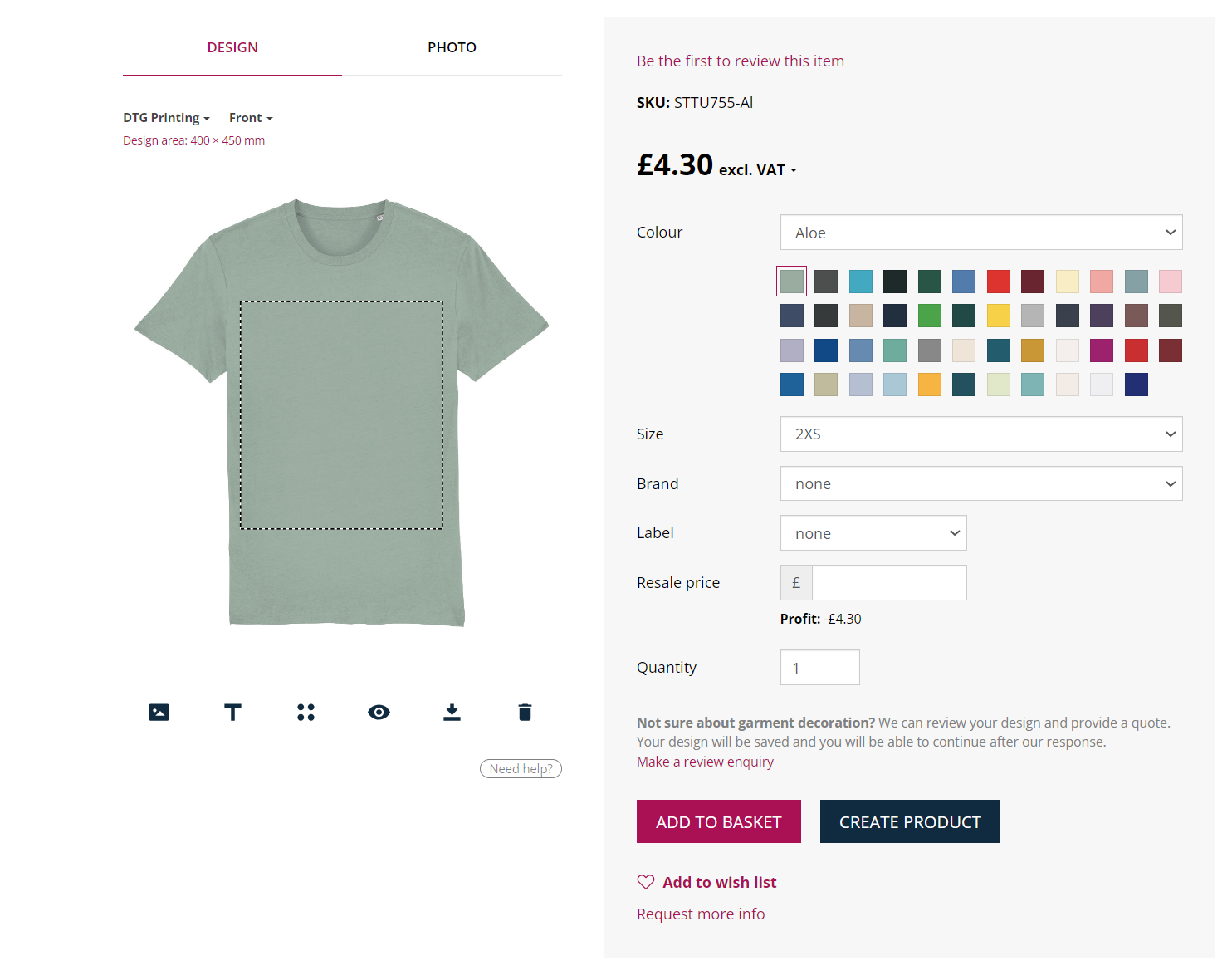
On the product details page, locate the six icons on the left-hand side beneath the garment mockup.
-
Upload: Click the first icon (top left) and select your high-resolution print file (ensure it is 300dpi for best quality).
-
Position: Once uploaded, drag and drop the image onto the garment. Use the control panel below the mockup to resize, rotate, or delete.
-
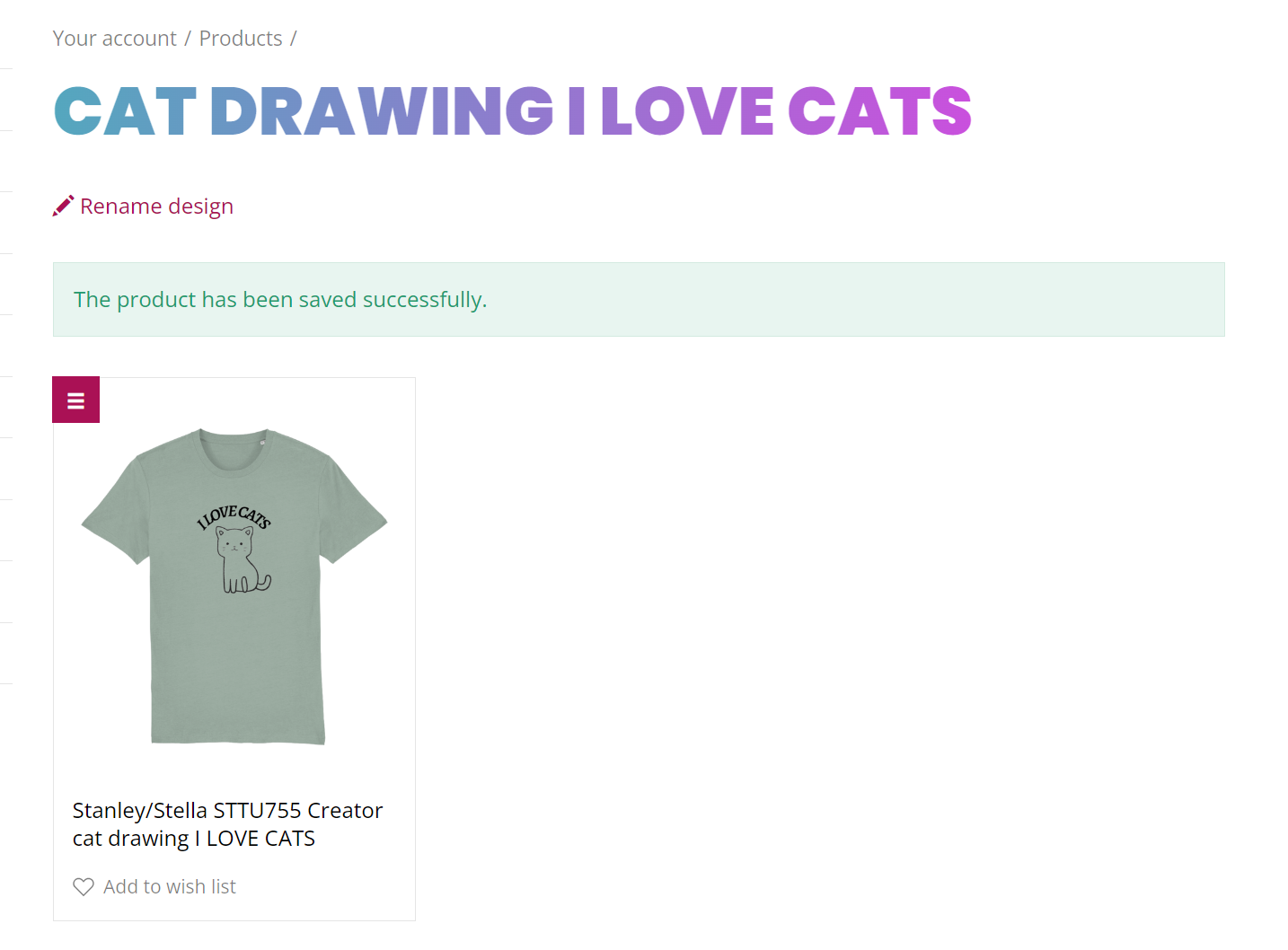
Save Layout: When you are happy with the placement, click the "Create Product" button. The page will reload with your saved design.

Step 3: Edit Product Information
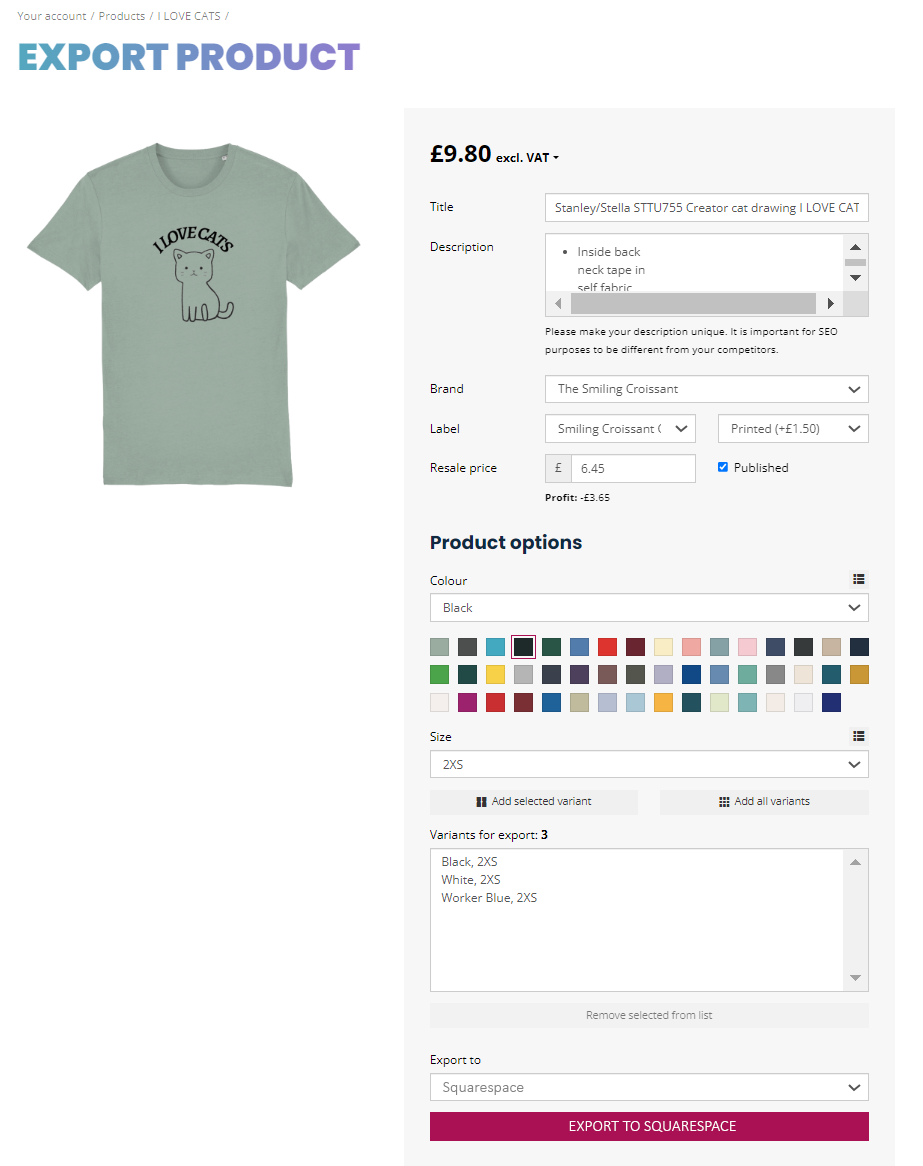
Before exporting to Squarespace, customize the listing details:
-
Title: Enter the name your customers will see. By default, it combines the garment and design name, but you can change it to something catchier.
-
Description: This field is pre-populated with garment specs (material, weight). You can add your own marketing story here.
-
Brand: Select which brand profile to assign to this product.
-
Label: If the garment supports it, select your custom neck label from the dropdown.
-
Resale Price: Set the price you want to charge customers on your store.
-
Published: Keep this checked if you want the product to go live on your store immediately after sync.
Alter Product Name
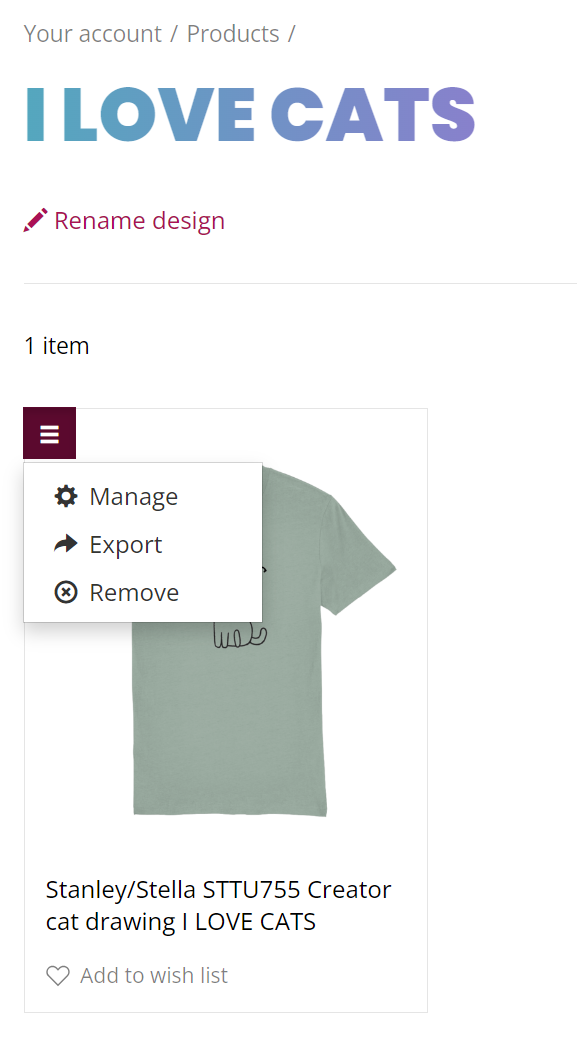
To export items your Squarespace store: click the export icon (with the arrow pointing to the right).
Step 4: Configure Variants (Colors & Sizes)
-
Scroll down to the Product Options section.
-
Select the specific colors and sizes you want to offer in your store.
-
Every variation you select will appear in the "Variations for Export" box. Review this list to ensure you have selected all the options you need.

Step 5: Export to Squarespace
-
Review all product details and variants one final time.
-
Click the "Export to Squarespace" button.
-
Once the sync is complete, the button will change to "View on Squarespace."
-
Click it to see your new product live on your storefront!
Important Reminders
-
Shipping Weights: Live Ink automatically sends the product weights to Squarespace, which is essential for your weight-based shipping rates to work correctly.
-
Sync Time: It may take a moment for high-resolution mockups to transfer to your Squarespace image gallery.
-
Stock Levels: Live Ink recommends setting your Squarespace inventory for these items to "Unlimited" since they are printed on demand.